Lycri



Lycri presents lyrics to a
larger screen
Lycri
Lycri


Lanterns on the Water


Verse 1
Down by the river where the tall reeds bend I hung a little lantern for a long-gone friend The current took it gently, it was gold and it was slow And it carried every word I never let you know


Chorus
So light them up, let them drift away Every little flame is a thing I meant to say And if you see them shining where the dark meets the sea Leave one burning on the shore for me
Verse 2
The town is sleeping and the bridges hum I count the boats returning, but I'm waiting for one The willow keeps a secret and the stones keep the time And the water keeps on singing in a borrowed rhyme
Chorus
So light them up, let them drift away Every little flame is a thing I meant to say And if you see them shining where the dark meets the sea Leave one burning on the shore for me
Bridge
Paper and fire, a breath and a wish Nothing so fragile ever travelled like this
Verse 3
Morning on the river and the mist rolls in The lanterns all are sleeping where the reeds begin But one is still out drifting past the harbour wall Like it heard you somewhere and it heard you call
Chorus
So light them up, let them drift away Every little flame is a thing I meant to say And if you see them shining where the dark meets the sea Leave one burning on the shore for me
Outro
Leave one burning, leave one burning Down where the water bends Leave one burning, I'll keep returning Till the river finds its end

clean up
Presenter


This display


Go live
Down by the river where the tall reeds bend I hung a little lantern for a long-gone friend The current took it gently, it was gold and it was slow And it carried every word I never let you know So light them up, let them drift away Every little flame is a thing I meant to say And if you see them shining where the dark meets the sea Leave one burning on the shore for me The town is sleeping and the bridges hum I count the boats returning, but I'm waiting for one The willow keeps a secret and the stones keep the time And the water keeps on singing in a borrowed rhyme So light them up, let them drift away Every little flame is a thing I meant to say And if you see them shining where the dark meets the sea Leave one burning on the shore for me Paper and fire, a breath and a wish Nothing so fragile ever travelled like this Morning on the river and the mist rolls in The lanterns all are sleeping where the reeds begin But one is still out drifting past the harbour wall Like it heard you somewhere and it heard you call So light them up, let them drift away Every little flame is a thing I meant to say And if you see them shining where the dark meets the sea Leave one burning on the shore for me Leave one burning, leave one burning Down where the water bends Leave one burning, I'll keep returning Till the river finds its end

hide lyrics


show live view
Editor

Presets

lyric
Lyrics to display at a time


typography

Advent Pro


background
Background type


Choose image
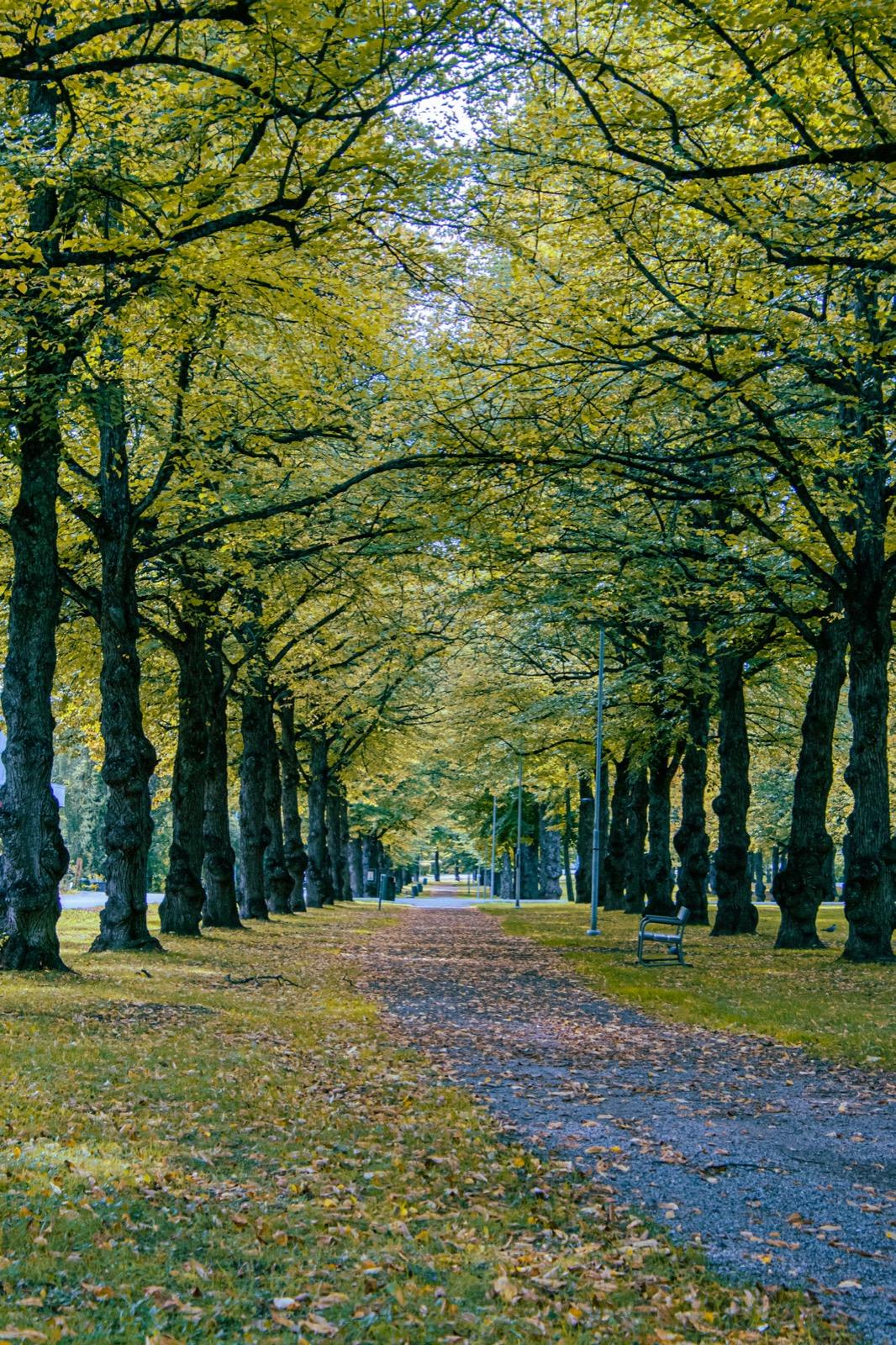
forest-path.jpg

recently used
Lycri is simple. Paste a song, style it, step through it line by line, and it presents those lyrics on whatever display you choose.
 Download for Windows
 Get it for Mac
Saved lyrics


river

Lanterns on the Water

Where the River Bends
Golden Hour
Carry Me Over
Hold the Light
Riverstone Hymn
Morning on the Delta

Find a lyric
Every lyric you save stays in your library. Search by its name or any line you remember, and it opens ready to present.
Lycri
Lanterns on the Water
adding a new lyric
Start typing, paste your lyric, or search for a saved lyric…
clean up
Verse 1
Down by the river where the tall reeds bend I hung a little lantern for a long-gone friend The current took it gently, it was gold and it was slow And it carried every word I never let you know
Chorus
So light them up, let them drift away Every little flame is a thing I meant to say And if you see them shining where the dark meets the sea Leave one burning on the shore for me
Verse 2
The town is sleeping and the bridges hum I count the boats returning, but I'm waiting for one The willow keeps a secret and the stones keep the time And the water keeps on singing in a borrowed rhyme
Chorus
So light them up, let them drift away Every little flame is a thing I meant to say And if you see them shining where the dark meets the sea Leave one burning on the shore for me
Bridge
Paper and fire, a breath and a wish Nothing so fragile ever travelled like this
Verse 3
Morning on the river and the mist rolls in The lanterns all are sleeping where the reeds begin But one is still out drifting past the harbour wall Like it heard you somewhere and it heard you call
Chorus
So light them up, let them drift away Every little flame is a thing I meant to say And if you see them shining where the dark meets the sea Leave one burning on the shore for me
Outro
Leave one burning, leave one burning Down where the water bends Leave one burning, I'll keep returning Till the river finds its end
Or add yours
Paste a lyric from anywhere. Clean up strips out chords and website clutter, then splits the song into its verses and choruses.
Down by the river where the tall reeds bend I hung a little lantern for a long-gone friend The current took it gently, it was gold and it was slow And it carried every word I never let you know So light them up, let them drift away Every little flame is a thing I meant to say And if you see them shining where the dark meets the sea Leave one burning on the shore for me
Editor
Presets
lyriceditor
Lyrics to display at a time
typography
Advent Pro
background
Background type
recently used
Change how it looks
Set the font, size, colour, alignment and background. The preview updates as you change them, so you see the slide before anyone else does.
Down by the river where the tall reeds bend I hung a little lantern for a long-gone friend The current took it gently, it was gold and it was slow And it carried every word I never let you know So light them up, let them drift away Every little flame is a thing I meant to say And if you see them shining where the dark meets the sea Leave one burning on the shore for me The town is sleeping and the bridges hum I count the boats returning, but I'm waiting for one The willow keeps a secret and the stones keep the time And the water keeps on singing in a borrowed rhyme So light them up, let them drift away Every little flame is a thing I meant to say And if you see them shining where the dark meets the sea Leave one burning on the shore for me Paper and fire, a breath and a wish Nothing so fragile ever travelled like this Morning on the river and the mist rolls in The lanterns all are sleeping where the reeds begin But one is still out drifting past the harbour wall Like it heard you somewhere and it heard you call So light them up, let them drift away Every little flame is a thing I meant to say And if you see them shining where the dark meets the sea Leave one burning on the shore for me Leave one burning, leave one burning Down where the water bends Leave one burning, I'll keep returning Till the river finds its end
Preview before live
Work on the next slide in the preview while a small live view shows what the audience sees right now. Drag it out of your way; it follows along as the lyrics scroll.
Presenter

Run it live
Step through lines with the arrow keys, or let them scroll at a natural pace or a fixed speed. Hide the lyrics in an instant when you need a clear screen.
How do you want to display?
presents lyrics on this displaypresents on
this display
Choose your display
Show lyrics on this screen, extend them to a projector or second display, or send them over NDI to your stream or video switcher.
Some questions,some answers
Something missing? Ask on GitHub.
Yes. There is no price, no subscription and no account to make: install it and start presenting. Its source code is public on GitHub.
Yes. Download the Windows installer or the Mac app from this page. On a Mac it needs macOS 12 Monterey or later.
Lycri does one job: putting song lyrics on a screen. It has no scripture, announcement or media-playlist tools. If you need those, the bigger apps do more. If lyrics are what you run, Lycri gives you a lighter tool to learn, at no cost.
Paste the lyrics from anywhere. Clean up strips out chords and website clutter and splits the song into its verses and choruses. Save it and it stays in your library, where you can search by title or by any line. You can export the whole library to a file and import it on another computer.
Yes. Choose your display: show the lyrics on the screen you’re working on, send them full screen to a projector, TV or second monitor, or send them over NDI. Your control window stays on your own screen either way.
Install the free NDI Tools (which include the NDI Runtime) on the computer running Lycri. Lycri then appears as “Lycri Lyrics Output” to OBS, vMix, a video switcher or anything else that receives NDI on your network.
Set the font (any font installed on your computer), the size, colour and alignment, and put the lyrics over a solid colour, an image or a video. Save a look as a preset to use it again, and export presets to share them with another computer.
The installer isn’t code-signed yet, so Windows SmartScreen may say it “protected your PC”. Choose More info, then Run anyway. Only run an installer you downloaded from this page or from Lycri’s GitHub releases.
Lycri isn’t notarized by Apple yet, so macOS blocks it the first time. Click Done, then go to System Settings → Privacy & Security, scroll down and click Open Anyway. You only need to do this once.
Open an issue on Lycri’s GitHub. Say what you expected, what happened, and whether you’re on Mac or Windows.
 View on GitHub